
We use Figma to share website and app design prototypes. This allows you to view the latest visuals, test basic interactions, and leave feedback directly on the design.
Here’s a simple step-by-step guide to help you get started.
What You Can Do
-
View a live prototype of the design (this is not a working website).
-
Navigate through pages or screen flows, if available.
-
Leave comments on specific elements or sections.
-
Review updates and revisions as the project progresses.
Opening the Design
-
Click the Figma link we’ve sent you.
-
The prototype will open in a browser tab, no login required (unless requested for private files).
-
By default, you may see the desktop layout even on a mobile device or visa versa, this is normal and helps show the full design.

Navigating Pages
If your prototype includes more than one page:
-
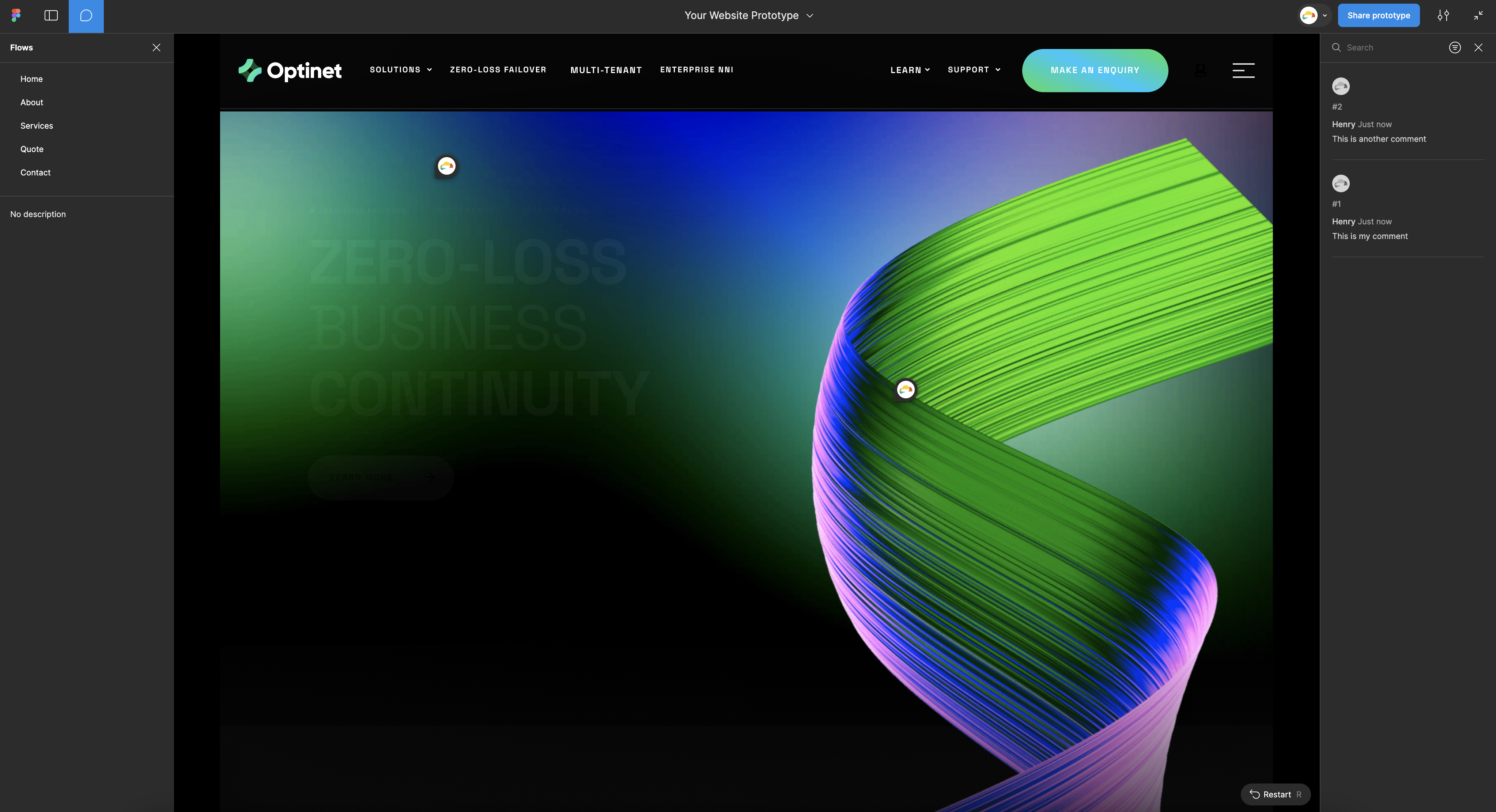
Look for the page list on the left-hand side of the screen.
-
If you don’t see it, click the menu icon in the top-left corner to open the sidebar.
-
Click any page or screen to jump to that view.

Leaving Feedback via Comments
You can leave comments directly on any part of the design:
-
Click the speech bubble icon in the top toolbar.
-
Click anywhere on the design to leave a comment.
-
Type your feedback and click Post.
Please be as specific as possible (e.g. “Can we change this button text to ‘Get Started’?”)
Having Trouble?
-
If you have issues viewing the design or it’s not displaying correctly, try using a desktop browser like Chrome or Safari.
-
Prefer a different format? Let us know, we’re happy to provide a PDF, video walkthrough, or static imagesinstead.
If you have any questions or want help navigating the prototype, feel free to reach out, we’re here to help!


